
A JSON export can be useful when you need to inspect a small dataset, compare records or prepare a controlled import. The important question is what the export actually contains. A file that saves successfully can still contain fewer documents than you intended.
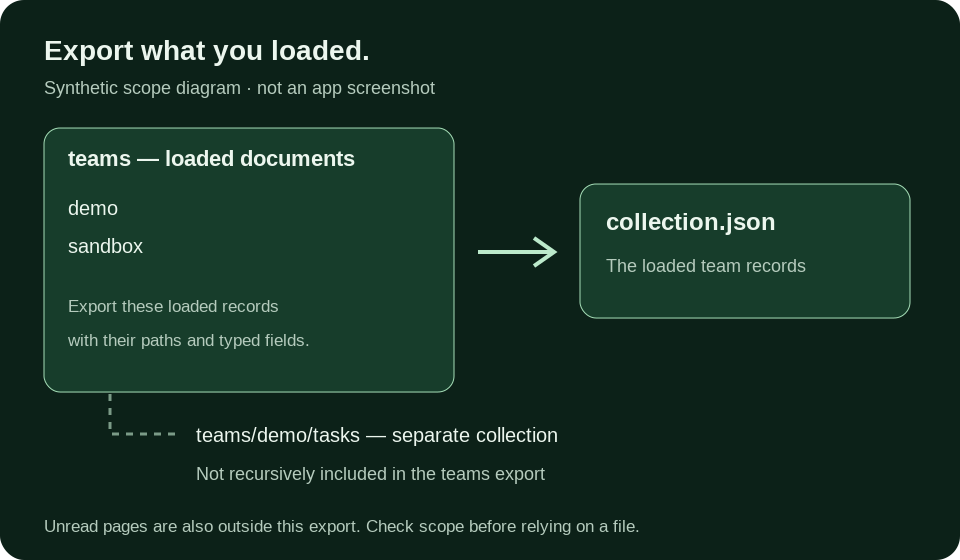
Cengal exports the documents currently loaded in its workspace. It does not silently load every remaining page or recursively collect every subcollection. This guide explains how to make that scope deliberate.
Decide whether you need a working copy or a managed export
Use Cengal’s JSON export for a scoped local file you can inspect. For a database migration, recovery plan or large managed export, evaluate Google’s Firestore managed export and import service separately. That service uses Cloud Storage and its own export format and requirements.
A Cengal JSON file is not the managed service’s export format. Do not feed it to a managed import and expect the formats to be interchangeable. A collection file also should not become your only recovery plan.
1. Confirm the source before exporting
Check the active identity, project ID, database and collection path. If you have similarly named environments, use the connection checklist first.
Look at the active filters and sorting as well. A filtered workspace and an unfiltered collection answer different questions. Write down the intended scope before saving: for example, “the loaded open-task results from the staging project’s root tasks collection.” Avoid vague filenames that will be mistaken for a complete database later.
2. Load the pages you need
Cengal’s export uses loaded documents. If you have loaded one page, the file represents that loaded set, not the unread remainder of the collection.
Follow the collection navigation instructions to load additional pages when needed. Confirm the rows in the workspace before exporting. Where the source can change during your work, remember that loading pages over time is not a promise of a single consistent database snapshot.
For large or frequently changing collections, decide whether the managed export service is a better match before relying on a desktop working copy.
3. Export JSON and inspect the saved structure
Choose Export and save the file with a .json extension. Cengal also supports CSV, but JSON is easier to inspect when records contain nested maps, arrays or Firestore-specific types.
Cengal’s exported records include documentID, path and fields. Check all three:
documentIDidentifies the document within its collection.pathprovides its document location.fieldscontains the document values using Cengal’s extended JSON representation where required.
A filename alone cannot establish the source. Inspect the document paths and a few known records in the file. Check the number of records against the set you intended to load. If that number is unexpectedly small, return to the workspace and investigate filters, pagination and the collection path before attempting an import.
4. Preserve types when you work with the file
Firestore has values that ordinary JSON does not represent directly, including timestamps, document references, geographic points and bytes. Large integers also deserve care when a tool reads JSON numbers with limited precision.
Cengal uses an extended JSON representation for its typed interchange. Keep those representations intact if the file will return through Cengal’s import workflow. A spreadsheet or generic JSON transformation can change a number to text, flatten a nested value or strip information it does not recognize.
Google’s Firestore data-type reference explains the database types. The wrapper representation in this export belongs to Cengal; it is not a claim that every Firestore tool uses the same JSON convention.
5. Check subcollections separately
Exporting the loaded documents of teams does not recursively export teams/demo/tasks. If you need nested data, identify each required collection path and use an appropriate export plan.
A small synthetic inventory makes the boundary clear:
| Loaded source | Included scope | Not automatically included |
|---|---|---|
Root teams collection |
Loaded team documents | Documents inside each team’s subcollections |
teams/demo/tasks |
Loaded tasks at that exact path | Other teams’ tasks or deeper subcollections |
This table illustrates scope; it is not a measured run against a customer database.
Review before importing anywhere
A local export may contain private data. Store and share it according to your team’s policy. Cengal’s document processing does not make the resulting file safe to post publicly.
If you plan to import it, follow Import JSON into Firestore and review the destination paths and staged changes before applying. Practise with disposable data first. Confirming the source of an export and the destination of an import are separate checks.
Download Cengal for Mac to try the workflow, or start with its local sample data before connecting a project.
Verification: export scope, record keys and typed values were checked against Cengal’s implementation and published documentation. No customer data was exported for this article.